The year is coming to a close and as every year passes, and as humans we tend to reflect on all of the different things that the year brought our way – the good, the bad and the ugly. For our team at CRS, reflecting on the year gives us an opportunity to find ways to better support our merchants so they can operate at their fullest potential!
2025 brought us DOZENS of new merchants for Global Payments Retail (formerly Heartland Retail) and HOURS of training sessions to teach these merchants how to optimize their system. In doing that, we’ve had every question under the sun hit our desk (or so we think…we’re always surprised by new questions!), many of which were common questions amongst multiple merchants. This gave us the idea to produce our top 5 frequently asked questions for Global Payments Retail from 2025, as maybe these questions are floating around other merchant’s heads as well.

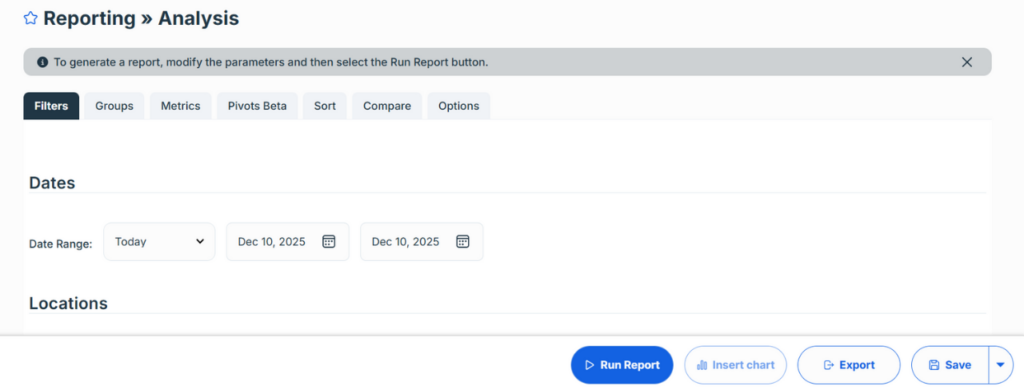
Q: What is the difference between Filters, Groups and Metrics in the Analysis tab under Reporting?
A: Groups are essentially categories and represent WHAT you are reporting on. Metrics are the raw data or numbers of the report and represent HOW MANY or HOW MUCH you are reporting on. Filters narrow the data down even further based on a variety of different options such as date ranges, departments, class, sub-class, or even sales people.
Understanding the difference between these three tabs in the Analysis feature within your system will help you build meaningful reports for your business. The best way we suggest merchants to better understand the differences is by simply playing around with the Analysis feature and running reports consistently to see what happens when you make changes to the filter tab, groups tab or metrics tab.
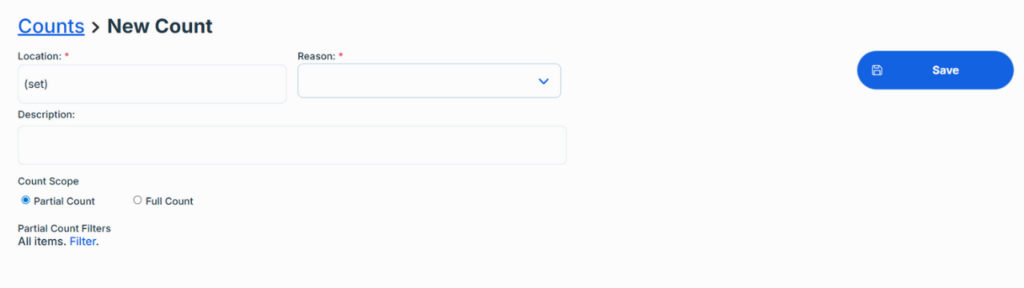
Q: What is the difference between a partial count and a full count, and what are the benefits or drawbacks of each?
A: A partial count is used when merchants are only counting a certain portion of their inventory. For example, if a merchant decides they want to count only the jeans in their store, they can narrow down their count to just jeans based on a custom field they set up for departments, class and/or sub-class. When a partial count is completed, only the specific department will get an updated inventory count while the remaining items in the system will remain untouched.
A full count is used when merchants are counting their entire inventory. They can do multiple batches for a single count, meaning multiple employees can scan items into the count at once. Once a full count is completed, the entire inventory listing in the system is updated, including items that weren’t scanned (adjusting the inventory quantity of that item to zero).
When doing inventory counts, the system will “freeze” all quantities and you won’t be able to sell items that are currently being counted. Therefore, a partial count can be very beneficial when merchants are doing a count over multiple days, as to not hold up their inventory items for too long in this “frozen” state.
Q: What are button groups and what is the best way for my retail business to utilize them?
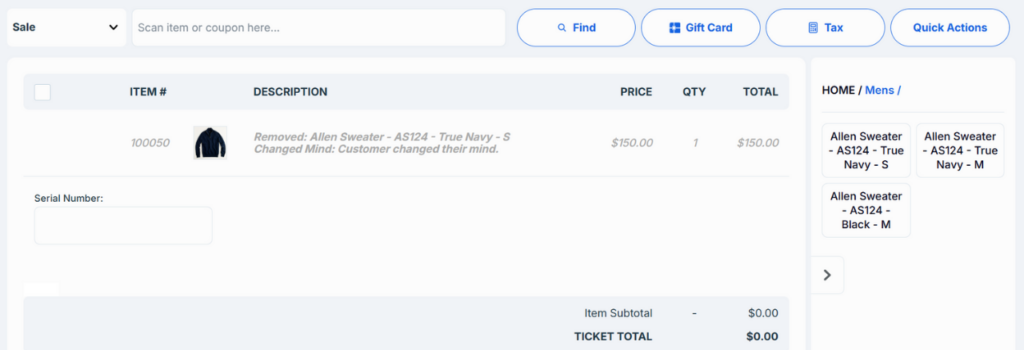
A: Button groups are a way to set up quick item buttons on your point of sale screen, giving cashiers the ability to pull in certain items at the click of a button rather than having to scan it in or find it in the search window. A button “group” houses multiple item buttons under a single category to help organize these quick item buttons.
One way merchants tend to utilize these quick buttons is when they have a selection of items that tend to be best sellers. They will create a button group called “Best Sellers” and add all of those items into that group, so when people purchase those items, they have a quick and easy short list of products they can select from.
Another instance where merchants would utilize button groups is for the sale of bags, especially in Canada where plastic bags have been removed from the industry altogether. They will create a group called “Bags” and then create non-inventoried items for the different bag options (paper, reusable, iconic, etc). This gives them the ability to easily pull in bag purchases at the time of sale.
Some other instances where these quick item button groups can be useful are:
- When a merchant sells MANY different options or variations on a smaller product like, hair clips or makeup products, and don’t want to have to individually label each and every product for scanning in to the ticket
- When a merchant doesn’t utilize the label printing or scanning function at all and needs a way to better organize their items to reduce the risk of errors that can sometimes come with using the search function throughout their entire inventory list
- When a merchant is selling promotional items or has a refined list of sale items and needs a way to pull those items in to a ticket quickly and efficiently
Q: What is the best way to utilize the Sales Order feature in Heartland?
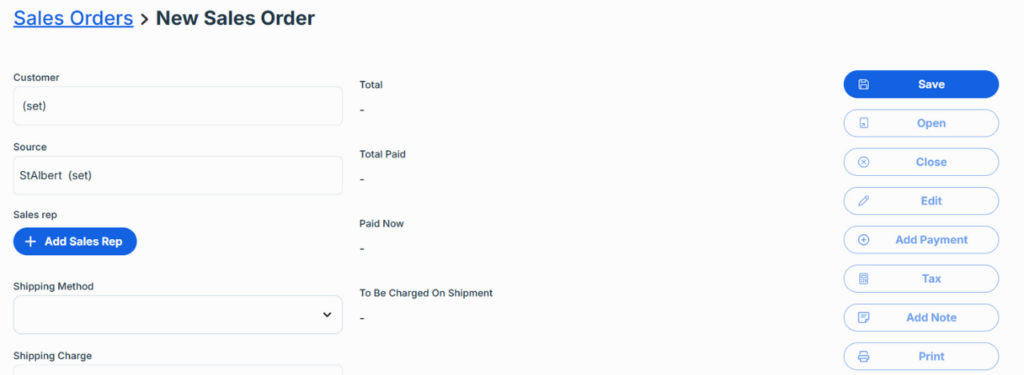
A: Sales Orders are any type of sale outside of a regular POS transaction in the store. This includes integrated online stores, as online sales come into the point of sale system as a Sales Order.
Outside of ecommerce, merchants can also utilize Sales Orders in the following ways:
- To take sales over the phone on the backend. Merchants will create a sales order and utilize manual credit card entry on their payment processor to take payments over the phone. When the customer comes in to pick up their purchase or the merchant has shipped it out, they will then click on the “Invoice” button to close out the Sales Order. A custom payment option can also be set up in the Settings of the system that will allow them to check off a box to either “Charge payment now” or “Charge payment upon shipment”.
- To allow customers to pre-order products before they are available. With the ability to charge deposits up front and the rest on pick up or shipment, merchants have the flexibility to set up pre-order services the way that works best for their business. Merchants can also organize their Sales Orders by “Fillable” and “Non-Fillable” to get a better idea of when things are in stock and ready to be picked up or shipped out. The “Picklist” feature also allows merchants to easily print off a catch-all one pager of the items they need to collect to fill all of the fillable Sales Orders within their system, much like how the Picklist would work for integrated online sales.
- To allow customers to purchase variation options of an item that a merchant doesn’t typically carry in the store. As an example, if a merchant carries a dress style in black, white and grey but the customer wants it in pink (and the vendor carries it in that color), a Sales Order is a good way to capture that sale on an item not yet available to the customer. From there, using the different setting options available, a merchant can decide if they want to charge the customer up front or later, or even charge a deposit.
Q: I accidentally closed my Purchase Order before I received everything. How do I reopen a PO?
A: This is a common question we get on a weekly basis. Once a Purchase Order is closed, it cannot be reopened. It’s a security feature within Heartland to make sure completed transaction records, including receiving, can’t be altered or manipulated. This is intended to give retail owners peace of mind that their records are ALWAYS accurate.
If there are items on a Purchase Order that were not received prior to closing the PO, those items become null and void. While the PO was open, it would show up as “QTY on PO”. When the item is received, it changes from “QTY on PO” to “QTY Available”. When the PO is closed without a Receipt on an item, that quantity disappears from the system and will not show up under “QTY on PO” or “QTY Available”.
With that in mind, the only way to correct this is to create a brand new Purchase Order with the items that were closed out without Receipts and then use the Receipts function to properly receive them in the system.

In addition to these frequently asked questions by our new and existing Global Payments Retail merchants, we also broke down some commonly asked pre-sale questions from retailers still trying to decide on which point of sale system to go with for their particular business needs. Below are the top 3 commonly asked questions and our “cheat sheet” quick answers.
Why Heartland and not something else?
- Fully equipped to run all areas of your business
- Future proof with consistent feature updates (top feature release of the year: Bundles)
- Cloud based so you can access your business data from anywhere, anytime
What are the 3 TOP SELLING features of Heartland?
- Custom Reporting
- Purchasing/Receiving
- Item Grids
What verticals benefit most from using Heartland?
- Apparel
- Footwear
- Accessories
- Gift Shops
- Jewelry Stores
- Bookshops
- Sporting Goods
- Home Goods
- Pet Stores